
Digital Tools troubleshooting guide
If one of the digital tools isn't loading or logging in correctly, here are some first steps you can try.
Step 1: Repeat the steps you took, again, to see if it works the second time.
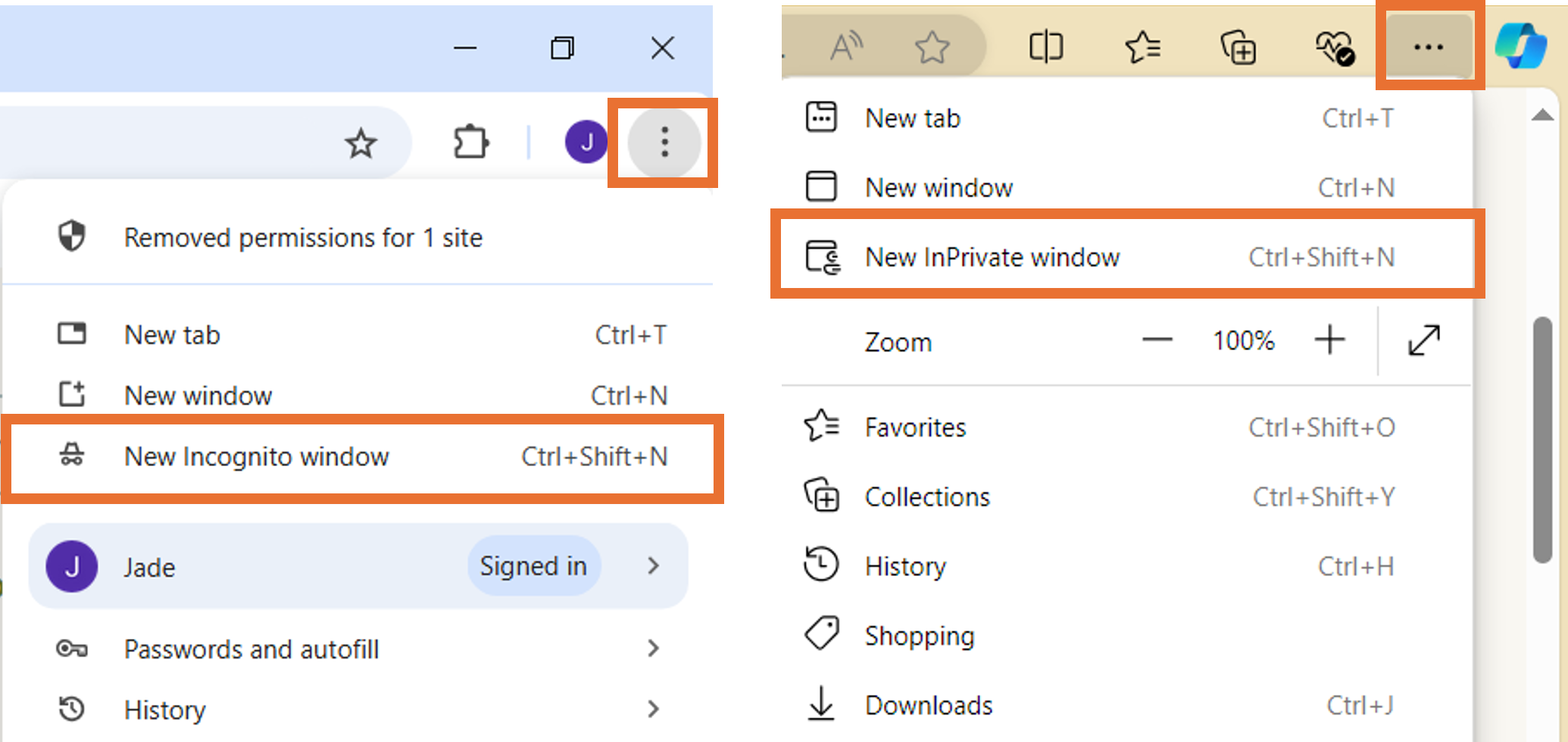
Step 2: Try the steps from an Incognito (Chrome) or InPrivate (Explorer) browser window.
- Click the three dots on the top right-handside of your brower.
- Navigate to "New Incognito window" or "New Inprivate window"
- If you normally use a password manager, you may need to input your username and password into the Nature Park website manually.
Step 3: Try the steps whilst connected to Wi-Fi.
Step 4: Try the steps whilst connected to mobile data.
Step 5: Log out of everything and then back in again.
Step 6: Turn off the device and then back on.
Step 7: If using a mobile device, check you have the latest update installed.
Step 8: Try the above steps on a different device.
Step 9: Ask a colleague to try the same.
If you are still having trouble contact us.
This guidance applies to the tools for 'Create your site boundary', 'Habitat mapping' and 'Tracking changes on your site' activities.
Step 1: Always access the tools via the Nature Park website. Log in to your Nature Park account.
Step 2: Navigate to the relevant webpage for the activity you are carrying out (links below).
Habitat mapping: a Nature Park guide
Step 3: Click the 'Start activity' or 'Launch activity' button to be redirected to the tool.

On the 'Habitat mapping: a Nature Park guide' webpage you can also click the 'Open Habitat Mapper' button within the text.
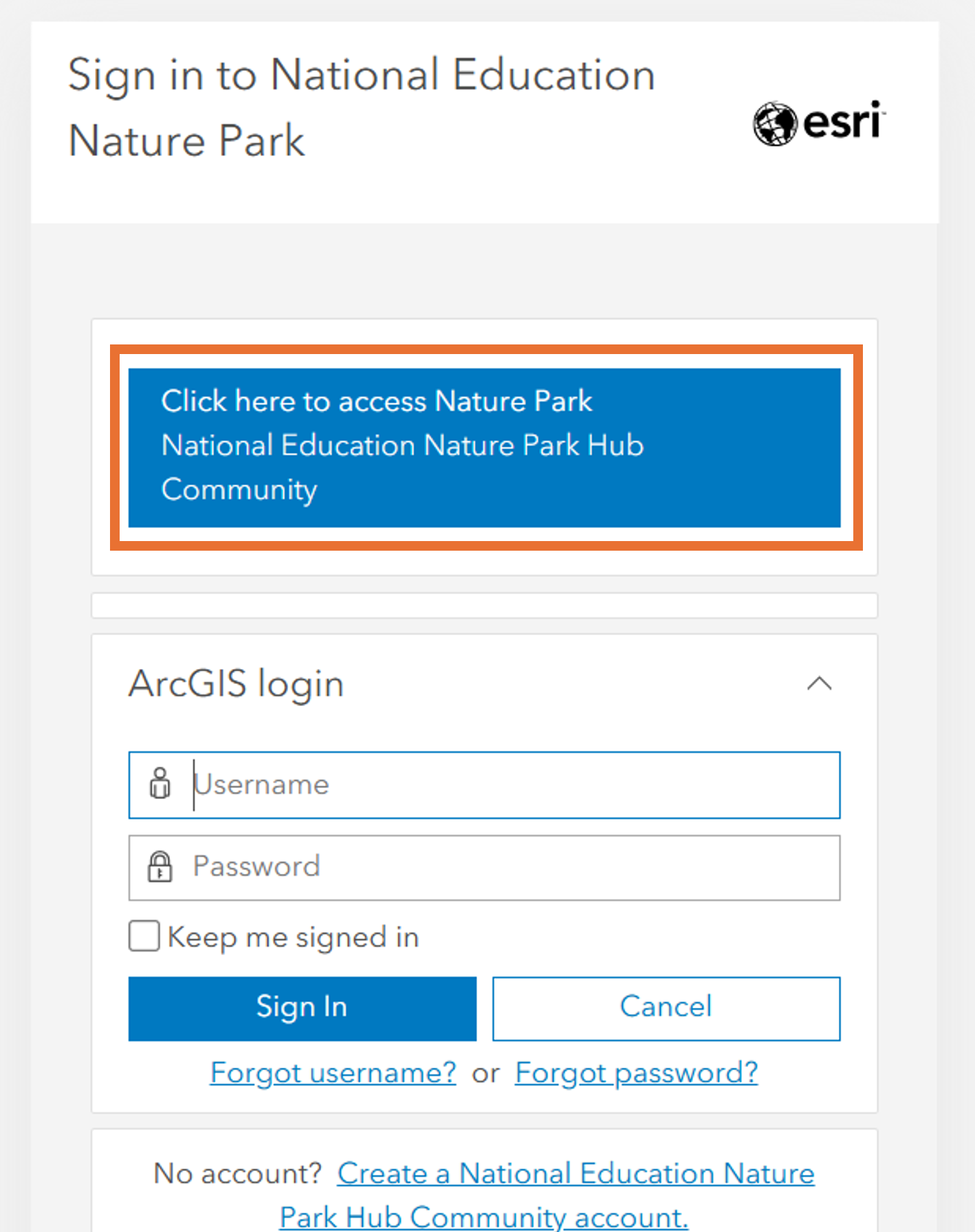
Step 4: You may see this log in screen - please DO NOT type in your Nature Park login details (or any Esri login details you have). Just click the large blue button labelled 'Click here to access Nature Park National Education Nature Park Hub Community' button.
Step 5: You should arrive into the digital tool. You may be directed back the Nature Park website and asked to enter your login details again, before you arrive in the digital tool.
Step 6: If the above 5 steps do not work, and you haven't already, try the 'First things to try' steps above.
Please note, we are no longer using the ArcGIS Field Maps app for habitat mapping (although you can continue to do so if you wish to) so you do NOT need to download the Field Maps app. The Habitat Mapper tool can be accessed on a browser so you can use a tablet, laptop or desktop PC - whichever you prefer.
This guidance only applies if you wish to access the Habitat Mapper tool via the Field Maps app in order to complete the Habitat Mapping activities.
You will need a mobile device (e.g. phone or tablet) that:
- is compatible with the app (see compatibility requirements below)
- has the ability to connect to the internet
- has an app store installed onto it
You may need:
- to ask a senior staff member or IT department to do this for you, if you do not have permissions to install apps on the device you are using
We will be providing a standard, headed letter you can provide to colleagues to justify downloading this app, in due course.
Step 1: Access the internet via Wi-Fi or mobile data
Step 2: Open the app store on your device and search for ArcGIS Field Maps

Step 3: Install the app (the app is free)
Step 4: You do not need to set up an ESRI account or directly login to the app. Once ready to use the tool head back to the Nature Park website, login to your account, access the Mapping your site webpage and click the 'Open Habitat Mapper tool' button to access and login to the tool.
Compatibility requirements
Android
Android 8.0 (Oreo) or later
Processor: ARMv7 or later
OpenGL ES 2.0 support
To use the location sharing capability on Android, Google Play services 11.6.0 or later must be installed.
iPhone Operating System (iOS)
iOS 14.5 or later
iPad, iPod touch
Please note, we are no longer using the ArcGIS Field Maps app for habitat mapping (although you can continue to do so if you wish to) so you do not need to use the Field Maps app. This error message is specific to that app.
The Habitat Mapper tool can be accessed on a browser so you can use a tablet, laptop or desktop PC - whichever you prefer.
If you are using the Field Maps app and receive this error message:
Error: 'Unable to open - this map needs to be shared with you'
Step 1: Click the person icon displayed on the app; top-right corner for Android, top-left corner for iPhone.
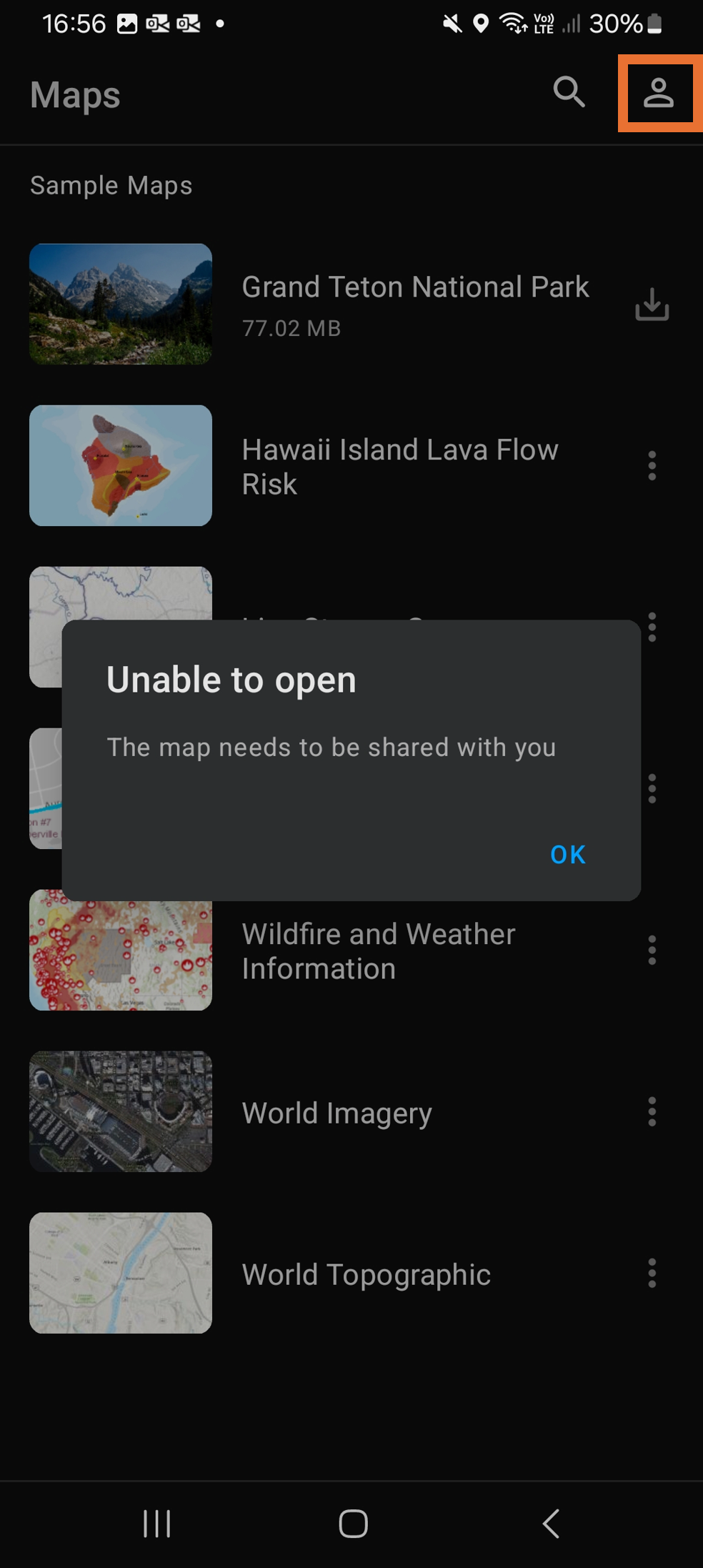
Step 2: From the list of options click 'sign in' or 'sign out', which ever is presented to you.
Step 3: Close the app and return to the Mapping your site activity page.
Step 4: Click the Open Habitat Mapper tool button.
Step 5: Click the large blue 'Click here to access Nature Park National Education Nature Park Hub Community' button, on the ESRI login page. DO NOT add in your Nature Park login details (or any ESRI login details you have).
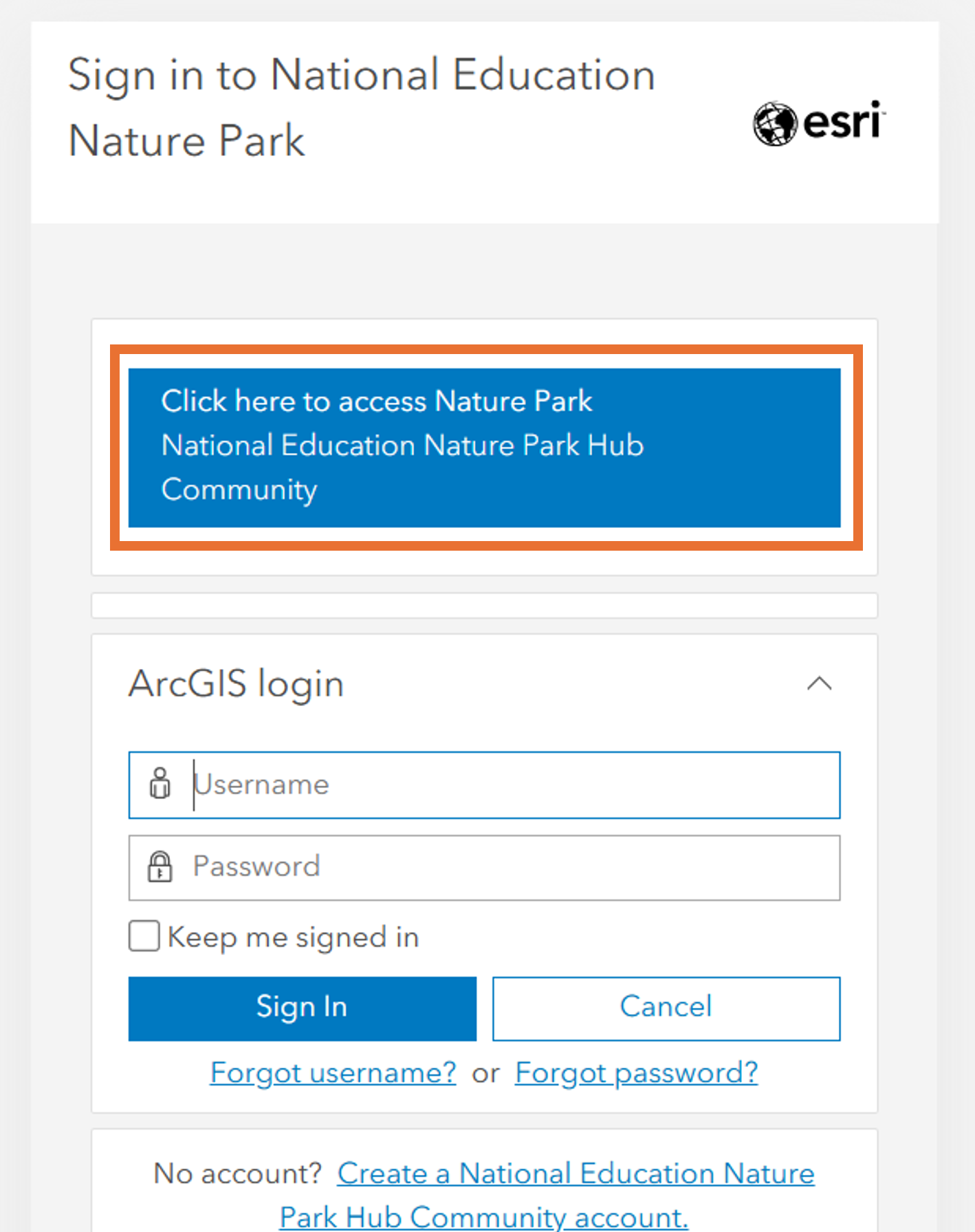
You should now have successfully logged in to Habitat Mapper tool.
If you are still having trouble contact us.
Please see our dedicated page on using the digital tools
The National Education Nature Park digital tools
For more content here is a list of tutorial videos that will help you with using the digital tools:
How to create your site boundary
How to edit your site boundary
The zoomed in aerial imagery basemaps used are captured, processed and delivered by Bluesky International Ltd and Getmapping Plc. This imagery operates on a rolling three year update. More information about the service can be found on the following.
Please note that there are several different basemaps that you can use aside from the aerial imagery layer.
Need more help?
If the above advice has not resolved your issue, then please do get in touch with us via the contact form.